
Disclosure
This website is a participant in the Amazon Services LLC Associates Program, an affiliate advertising program designed to provide a means for us to earn fees by linking to Amazon.com and affiliated sites.
Reading laptop battery pack voltage is the fastest way to judge pack health, identify dead cells, and confirm a replacement will fit. A correct voltage reading protects your motherboard and your wallet.
This complete guide walks you through multimeter and software methods, label decoding, and expert tips for spotting failing cells. Keep reading to read any laptop battery pack with confidence.
Key Takeaways
- 10.8V, 11.1V, and 14.8V are the most common nominal ratings on laptop battery labels.
- Full charge reads 0.5–1V higher than nominal; a 11.1V pack typically peaks near 12.6V.
- 20% deviation from the label voltage signals a failing cell or dead pack.
- Multimeter probes touch only the outer pins—never short adjacent terminals.
- Software tools like HWMonitor show voltage without opening the laptop.
Best Tools for Reading Laptop Battery Pack Voltage – Detailed Comparison
Fluke 117 Electrician’s Multimeter – Best Overall Choice
The Fluke 117 is the recommended tool for anyone serious about battery diagnostics. Its auto-ranging DC voltage mode delivers precise readings down to 0.1mV, ideal for detecting weak cells. Built-in VoltAlert warns of live circuits, and the backlit display stays readable in dim laptop chassis.

- Best for: Technicians and repair pros needing lab-grade accuracy
AstroAI AM33D Digital Multimeter – Best Budget Option
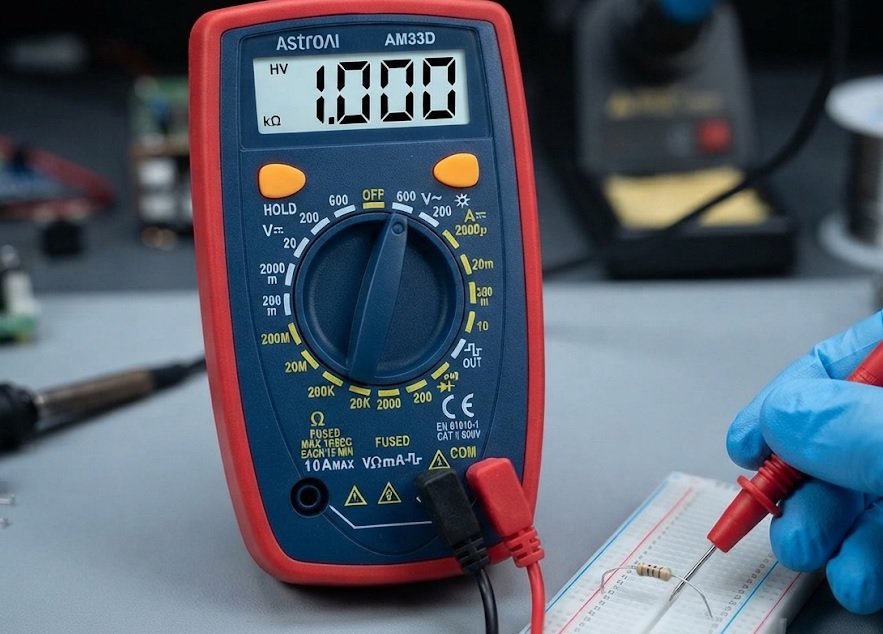
The AstroAI AM33D is the best option under $25 for occasional pack testing. It measures DC voltage up to 600V with ±0.5% accuracy, more than enough for 10.8V–14.8V laptop packs. The 2000-count display and overload protection make it safe for beginners probing terminals.
- Best for: DIYers and students on a tight budget
Klein Tools MM325 Auto-Ranging Multimeter – Best for Beginners
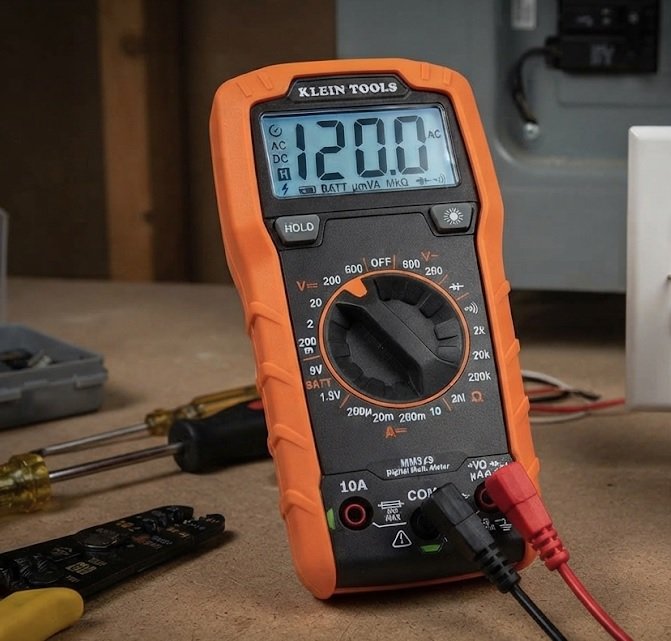
The Klein Tools MM325 is ideal for first-time battery readers. Its auto-ranging design eliminates dial guesswork, while the continuity beeper quickly confirms broken cell links. CAT III 600V safety rating and a rugged drop-tested body suit messy workbenches.
- Best for: New users wanting safety and simplicity
How to Read Laptop Battery Pack Voltage: Step-by-Step Methods
Reading laptop battery voltage takes minutes once you know the correct method. Choose a multimeter for physical packs or software for installed batteries.
Method 1: Using a Digital Multimeter
This proven method gives the most accurate voltage reading. Follow these steps carefully to avoid shorting terminals.
- Power down the laptop and unplug the charger.
- Remove the battery pack and locate the label voltage.
- Set the multimeter to DC voltage (20V range).
- Touch the red probe to the positive pin and black to negative.
- Read the display and compare it to the label rating.
Method 2: Reading Voltage via Software
For sealed internal batteries, software avoids disassembly. Tools like HWMonitor, BatteryInfoView, and Windows Power Report show live voltage data.
- HWMonitor: Displays real-time pack voltage and cell balance
- BatteryInfoView: Logs voltage history for trend analysis
- powercfg /batteryreport: Generates a built-in Windows HTML report
Understanding Normal vs. Abnormal Readings
Compare every reading against the label’s nominal voltage. Small deviations are normal; large ones signal failure.
| Reading | Status | Action |
|---|---|---|
| Within 5% of nominal | Healthy | None |
| 10–20% low | Degrading | Monitor closely |
| Below 20% | Failing | Replace pack |
Quick Tip
- Always test a fully charged pack for the most reliable reading.
Decoding Laptop Battery Pack Voltage Labels and Ratings
Battery labels contain critical specs most users ignore. Understanding them prevents buying the wrong replacement pack.
What Nominal Voltage Actually Means
Nominal voltage is the average voltage a pack delivers during normal discharge. It is not the maximum or minimum—just the baseline rating.
- 10.8V: 3-cell (3 × 3.6V) packs in older laptops
- 11.1V: 3-cell lithium-ion, the most common rating today
- 14.8V: 4-cell packs for gaming and workstation laptops
Reading the mAh and Wh Ratings
Voltage alone doesn’t tell the full story. Milliamp-hours (mAh) and watt-hours (Wh) reveal total capacity.
Wh equals voltage multiplied by amp-hours. A 11.1V, 4400mAh pack delivers roughly 48.8Wh.
| Spec | Meaning | Why It Matters |
|---|---|---|
| Voltage (V) | Electrical pressure | Must match replacement |
| mAh | Charge capacity | Higher = longer runtime |
| Wh | Total energy | Airline and safety standard |
Common Label Mistakes to Avoid
Misreading labels leads to incompatible purchases and damaged motherboards.
- Confusing charge voltage (12.6V) with nominal (11.1V)
- Matching mAh but ignoring voltage—always match volts first
- Trusting third-party labels that inflate capacity claims
Key Rule
- Voltage must match exactly; capacity (mAh/Wh) can be equal or higher.
Diagnosing Common Battery Voltage Problems Safely
Abnormal voltage readings point to specific faults. Identifying them early prevents laptop damage and safety hazards.
Signs of a Failing Battery Pack
Watch for these warning signs before voltage drops below safe thresholds.
- Rapid drain: Laptop shuts down at 40–50% charge
- Swollen casing: Physical bulging means immediate removal
- Erratic readings: Voltage jumps between tests
- Overheating: Pack feels hot during normal use
Why Voltage Drops Below Nominal
Low readings usually trace back to cell degradation or a dead cell string. Lithium-ion cells lose capacity after 300–500 charge cycles.
One weak cell drags the entire series down. A 11.1V pack with one failing cell may read only 9V.
| Symptom | Likely Cause | Fix |
|---|---|---|
| Reads 0V | Blown fuse or BMS lockout | Replace pack |
| Reads 30% low | Dead cell string | Replace pack |
| Fluctuates wildly | Loose internal connection | Stop using immediately |
Safety Precautions When Testing
Lithium packs store dangerous energy. Follow these precautions every time.
- Never puncture or bend the pack casing.
- Work in ventilated areas away from flammable materials.
- Use insulated probes to prevent accidental shorts.
- Dispose properly at certified e-waste centers.
Safety First
- A swollen or hot pack should never be tested—recycle it immediately.
Choosing the Right Replacement Battery Pack Voltage
Buying a replacement pack requires matching voltage exactly. A wrong rating can fry your motherboard or refuse to charge.
Matching Voltage to Your Laptop Model
Always check your laptop’s service manual or the original pack label first. Manufacturer specs override generic advice.
- Dell XPS 13: Typically 7.6V (2-cell) or 11.4V (3-cell)
- Lenovo ThinkPad T-series: Usually 10.8V or 11.1V
- HP Pavilion gaming: Often 14.8V (4-cell) packs
Why Higher mAh Is Usually Safe
Increasing capacity (mAh/Wh) extends runtime without harming the laptop. The battery management system (BMS) draws only what the device needs.
However, higher voltage is never safe—it forces excess current through sensitive components.
| Change | Safe? | Result |
|---|---|---|
| Same V, higher mAh | Yes | Longer runtime |
| Higher V (same mAh) | No | Board damage risk |
| Lower V | No | Won’t charge or boot |
OEM vs. Third-Party Packs
Genuine OEM batteries guarantee exact voltage and BMS compatibility. Quality third-party packs can work but require careful spec verification.
- Verify voltage matches the original label exactly.
- Check connector type and pin count.
- Confirm BMS chip supports your laptop’s firmware.
- Read reviews for real-world voltage accuracy.
Buying Rule
- Match voltage exactly; upgrade capacity freely; never exceed the original volts.
Advanced Tips for Accurate Laptop Battery Voltage Testing
Precision separates guesswork from real diagnostics. These expert tips improve reading accuracy and extend pack life.
Testing Under Load vs. Resting Voltage
Resting voltage is measured after 30 minutes of no use. Load voltage drops temporarily while the laptop runs.
- Resting reading: Best for judging true state of charge
- Load reading: Reveals weak cells under stress
- Compare both: A large gap signals high internal resistance
Using a Battery Capacity Tester
Dedicated testers measure real capacity, not just voltage. Devices like the ZKE EBC-A20 discharge packs at controlled rates for precise Wh readings.
This method takes longer but exposes inflated mAh claims on cheap replacements.
Calibrating for Long-Term Accuracy
Even quality multimeters drift over time. Follow these habits for reliable readings.
- Test on a known source like a fresh 9V battery quarterly.
- Replace probes when tips corrode or readings jump.
- Store meters away from heat and moisture.
- Log readings monthly to spot degradation trends.
| Method | Accuracy | Best Use |
|---|---|---|
| Multimeter | High | Quick voltage check |
| Software | Medium | Sealed batteries |
| Capacity tester | Highest | Full health audit |
Pro Tip
- Log voltage monthly—trends reveal failure weeks before symptoms appear.
Troubleshooting Voltage Readings That Don’t Match Expectations
Unexpected readings confuse even experienced users. Most mismatches trace to a handful of correctable causes.
Why a New Pack Reads Low
Fresh lithium packs often ship in storage mode at 30–50% charge. This protects cells during shipping and extends shelf life.
- Storage voltage: 3.6–3.7V per cell is normal on arrival
- First charge: Full voltage appears only after 2–3 cycles
- BMS wake-up: Some packs need a charger signal to activate
Multimeter Reads 0V: Common Causes
A zero reading rarely means a dead pack. Check these issues first.
- Wrong pin contact: Probes may miss recessed terminals.
- BMS protection lockout: The board cuts output after a fault.
- Blown internal fuse: Common after a short circuit.
- Blown meter fuse: Verify the multimeter itself works.
Software vs. Multimeter Discrepancies
Software readings often differ from direct probe measurements. The BMS reports data after internal processing, adding slight error.
| Discrepancy | Cause | Trust Which? |
|---|---|---|
| 0.1–0.3V | Normal BMS reporting lag | Either |
| 0.5V+ | Calibration drift | Multimeter |
| 1V+ | Failing sensor or cell | Multimeter |
Remember
- A multimeter always beats software for true voltage accuracy.
Extending Laptop Battery Lifespan Through Voltage Monitoring
Regular voltage monitoring does more than diagnose faults. It actively prevents the deep discharges that kill lithium packs prematurely.
Optimal Charging Habits Based on Voltage
Lithium-ion cells degrade fastest at voltage extremes. Keeping the pack within a moderate range dramatically extends cycle life.
- Charge to 80%: Keeps cells near 4.0V instead of 4.2V
- Discharge to 20%: Avoids stress below 3.5V per cell
- Store at 50%: Roughly 3.7V per cell for long-term storage
Temperature’s Effect on Voltage Readings
Heat inflates voltage readings and cold deflates them. Always test at room temperature for consistent results.
| Temperature | Voltage Effect | Impact |
|---|---|---|
| Below 10°C | Reads 5–10% lower | False “low” alarms |
| 20–25°C | Accurate baseline | Ideal testing range |
| Above 40°C | Reads slightly higher | Accelerated degradation |
When to Replace vs. Recalibrate
Not every low reading means a dead pack. Sometimes the BMS simply lost its calibration reference.
- Recalibrate first: Full charge, then full discharge, then recharge.
- Recheck voltage after calibration completes.
- Replace only if readings stay 20% below nominal.
- Recycle swollen packs immediately without testing.
Longevity Rule
- Staying between 20–80% charge can double your battery’s useful lifespan.
Conclusion: Mastering Laptop Battery Pack Voltage Readings
Reading laptop battery pack voltage is a simple skill with powerful results. You can now test packs, decode labels, and spot failing cells before damage occurs.
Always match voltage exactly when replacing a pack. Monitor readings monthly to catch degradation early.
Grab your multimeter and test your battery today. Stay between 20–80% charge for maximum lifespan.
With these proven methods, you are now equipped to keep every laptop battery healthy and safe.
Frequently Asked Questions about Reading Laptop Battery Pack Voltage
What is the normal voltage of a laptop battery pack?
Most laptop battery packs read between 10.8V and 14.8V nominal. Common ratings include 10.8V, 11.1V, 11.4V, and 14.8V, depending on cell count and chemistry. Always check your specific pack’s label for the exact rating.
A fully charged pack reads roughly 0.5–1V above nominal. For example, an 11.1V pack peaks near 12.6V at 100% charge.
How do I check my laptop battery voltage without opening it?
Use built-in software tools like HWMonitor, BatteryInfoView, or Windows’ powercfg /batteryreport command. These display live voltage data without disassembly, making them ideal for sealed internal batteries.
Software readings may differ slightly from direct multimeter measurements. For critical diagnostics, always confirm with a physical probe test.
Can I use a higher voltage battery in my laptop?
No—never exceed the original voltage rating. Higher voltage forces excess current through sensitive motherboard components, risking permanent damage. The battery management system may also refuse to charge an incompatible pack.
You can safely increase capacity (mAh or Wh) for longer runtime. Voltage, however, must match the original specification exactly.
Why does my new battery read lower than expected?
New lithium packs often ship in storage mode at 30–50% charge to protect cells during transport. This means initial voltage reads lower than the nominal rating, which is completely normal.
After two or three full charge cycles, the pack reaches its full voltage range. If readings stay low after cycling, the pack may be defective.
What voltage indicates a dead laptop battery?
A reading 20% or more below nominal signals a failing pack. For an 11.1V battery, anything under 8.9V indicates serious cell degradation or a dead cell string.
Readings near 0V usually mean a blown fuse or BMS lockout rather than complete cell death. Test with a known-good multimeter before replacing the pack.
How often should I test my laptop battery voltage?
Test once a month for optimal monitoring. Monthly readings reveal gradual degradation trends weeks before performance symptoms appear, giving you time to plan a replacement.
Log each reading in a simple spreadsheet. A steady decline of 0.1V per month suggests normal aging; sudden drops warrant immediate investigation.
Is it safe to test a swollen laptop battery with a multimeter?
Never test a swollen battery. Physical bulging indicates internal gas buildup and potential thermal runaway risk. Even brief contact could trigger a fire or explosion.
Power down immediately and place the swollen pack in a fireproof container. Take it to a certified e-waste recycling center for safe disposal.
Which is more accurate: multimeter or software voltage readings?
A digital multimeter is always more accurate than software. It measures raw voltage directly at the terminals, while software reports BMS-processed data with slight lag and calibration error.
Expect discrepancies of 0.1–0.3V as normal. Differences above 0.5V suggest BMS calibration drift or a failing sensor, so trust the multimeter reading.